
Fish shooting errors may involve a game that does not load, delayed animation, unresponsive controls, automatic fire continuing unexpectedly or a balance display that appears different after a session. These problems do not always come from the same source.
An interruption may be caused by the player’s connection, browser data, device performance, the game provider or a temporary lobby issue. The safest approach is to stop repeated actions, record the current information and check each layer in a clear order.
This troubleshooting article belongs to the FU88 fish-shooting section, which contains game guides, control explanations and practical session checks.
What Are Fish Shooting Errors?
Fish shooting errors are technical or display problems that interrupt the normal operation of an underwater arcade game. They may appear before the game opens, while targets are moving or after a session ends.
Common symptoms include:
- The loading screen remains incomplete.
- The game opens but animation freezes.
- Targets move with noticeable delay.
- The firing button does not respond.
- The ammunition value cannot be changed.
- Automatic fire or target lock behaves unexpectedly.
- The game disconnects during a session.
- Points or balance appear to update slowly.
- The session history is temporarily unavailable.
A visible problem does not automatically confirm that a balance has been lost or that a completed result has been cancelled. The game status and transaction history should be checked before reaching that conclusion.
First Checks Before Troubleshooting
Before refreshing the page repeatedly or opening another game tab, record the information currently visible on the screen.
Pause Further Actions
Stop pressing the firing button, changing ammunition or reopening the same room. Repeated commands can make it harder to determine which action was recorded.
Check The Current Balance
Note the balance or point value displayed before leaving the game. A screenshot can help preserve the exact information shown at that moment.
Record The Game And Room Name
Write down the title, provider and room being used. Several fish-shooting products may use similar graphics but maintain separate session records.
Note The Approximate Time
Record when the issue occurred. The time helps identify the relevant session or history entry without relying only on memory.
Use One Browser Tab
Do not open the same fish-shooting game in several tabs or windows. Multiple active sessions may compete for the same browser memory or create confusing displays.
Fish Shooting Game Does Not Load
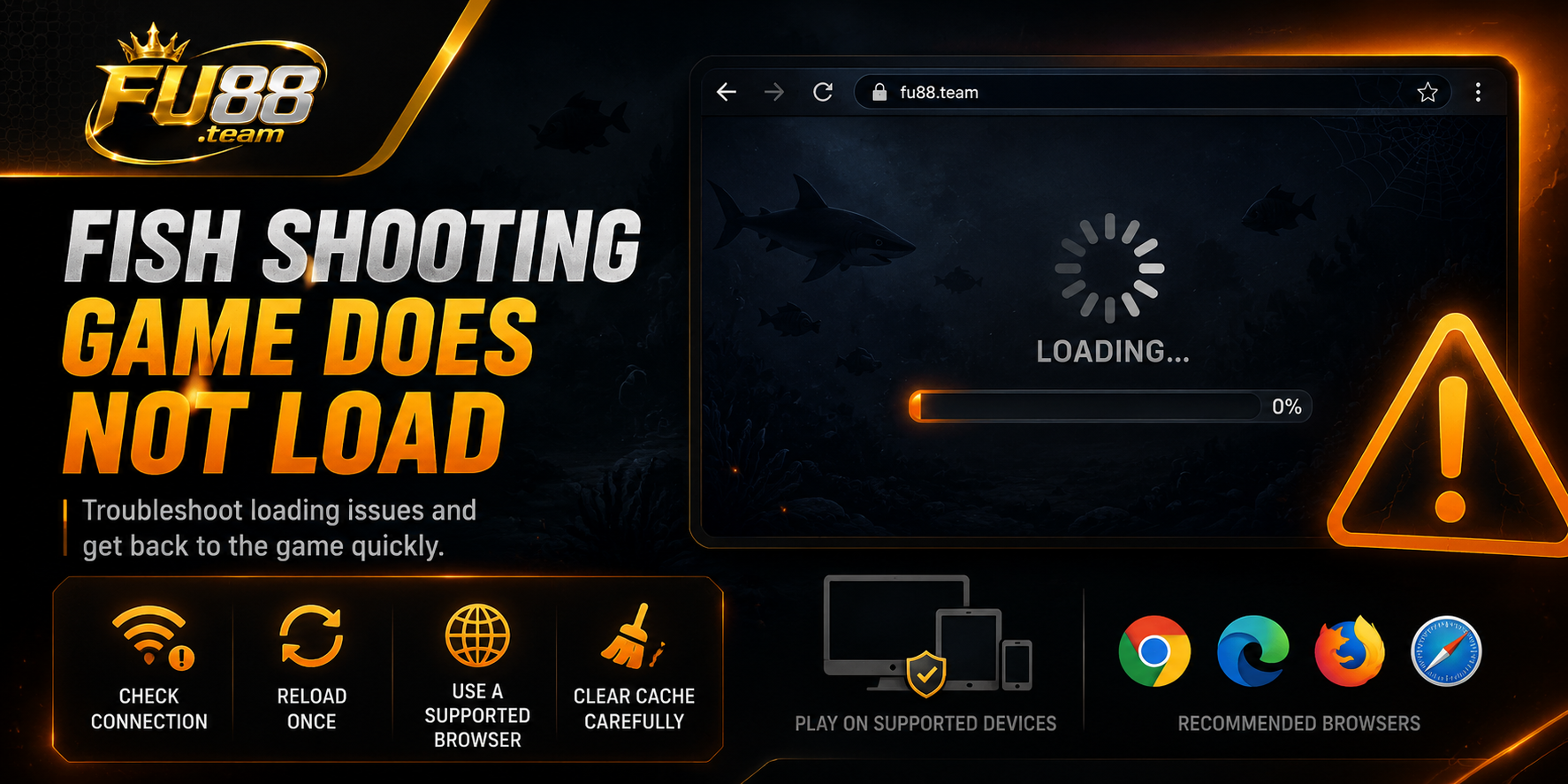
A loading error may appear as a blank screen, a frozen progress bar, a provider logo that never disappears or an interface missing its controls.
Wait For The Initial Load To Finish
Allow the game enough time to load before pressing refresh. Reloading during the initial connection can restart the same process from the beginning.
Check The Internet Connection
Open another normal webpage to determine whether the entire connection is affected. A weak or unstable connection may prevent large game assets from loading completely.
Close Unnecessary Tabs And Applications
Fish-shooting games may use animated graphics, sound and several interface elements at the same time. Closing unused browser tabs and background applications can release device memory.
Reload The Lobby Once
When no active session is visible, return to the fish-shooting lobby and open the game again once. Avoid continuous refresh attempts.
Try A Supported Browser
Use an updated mainstream browser. An old browser version may have difficulty loading newer graphics or interactive controls.
Clear Site Data Carefully
Cached files can occasionally conflict with a newer version of the game interface. Clear the affected site’s cache only after confirming that no active session is still being processed.
Game Opens But Freezes Or Lags
Lag may affect target movement, weapon animation, sound or the time between pressing a control and seeing the result on screen.
Reduce Other Network Activity
Large downloads, video streaming and cloud synchronisation can compete with the game for bandwidth. Pause unnecessary activity and check whether the animation becomes more stable.
Check Device Performance
A device with limited free memory may struggle with animated underwater scenes. Close unused applications and allow the browser to recover before reopening the game.
Avoid Rapid Repeated Inputs
Pressing the firing or ammunition buttons repeatedly during lag may send several commands before the screen catches up.
Pause and wait for the display to respond instead of adding more inputs.
Check Whether Sound Is Causing Delay
Some devices perform better when game sound or other media is reduced. This is a device-performance check, not a change to the game result mechanism.
Leave The Room When The Delay Continues
When controls remain delayed, stop the session and check the history before returning. Continuing to fire through heavy lag makes ammunition use more difficult to monitor.
Firing Button Does Not Respond
An unresponsive firing button can result from an incomplete interface load, a selected feature, a delayed connection or a temporary control state.
Confirm That The Game Is Fully Active
Check whether targets are moving and whether the balance, ammunition and weapon controls are visible.
Check The Selected Ammunition Value
The current setting may be unavailable for the remaining balance or restricted by the room configuration. Review the displayed value before pressing fire again.
Check Whether Another Function Is Active
A target-lock, weapon-selection or information panel may temporarily change how the main firing area responds.
Do Not Press Continuously
Repeated clicking during a delayed response can create several commands when the connection recovers.
Reopen The Game Only After Checking History
When the screen stops responding during an active sequence, check whether the shots or target result were recorded before starting another session.
The online fish shooting guide explains the normal roles of manual fire, target lock, ammunition controls and automatic functions.
Ammunition Value Cannot Be Changed
The increase or decrease control may appear inactive when the interface is still loading, another function is selected or the room uses a fixed range.
Check The Room Limits
Some rooms may restrict the minimum and maximum ammunition values. Reaching either limit can make one direction of the control unavailable.
Wait For The Previous Command
Changing the setting several times quickly may create a delay between the selected value and the value shown on screen.
Disable Automatic Fire First
Some interfaces may limit ammunition changes while automatic firing is active. Stop the function, wait for the display to settle and then check the controls again.
Confirm The Remaining Balance
The game may prevent a higher ammunition value when the balance cannot support the next shot at that setting.
Automatic Fire Continues Unexpectedly
Automatic fire can consume ammunition continuously while its activation state remains enabled. A delayed screen may make the function appear to continue briefly after it has been pressed again.
Check The Auto-Fire Indicator
Look for a highlighted button, active icon or status label showing that automatic firing is enabled.
Press The Control Once
A single deliberate input is safer than pressing the same control repeatedly during lag.
Change To Manual Control
After automatic firing stops, use manual fire until the connection and animation are stable.
Leave The Room When It Does Not Stop
When the function continues without responding, record the balance, close the game interface and review the session history.
Do Not Increase Ammunition During The Error
Changing to a higher value while automatic fire remains active may cause the balance to be consumed more quickly.
The fish shooting tips guide covers ammunition limits, target selection and safer use of automatic controls.
Target Lock Does Not Follow The Intended Creature
A target-lock problem may occur when the selected creature leaves the screen, another target crosses the path or the interface changes the active selection.
Confirm Which Target Is Highlighted
Look for a marker, outline or icon identifying the creature currently selected.
Stop The Lock Before Selecting Another Target
Cancel the existing target lock before pressing a different creature. This reduces confusion over which selection is active.
Check What Happens When A Target Leaves
Some games stop firing, while others may transfer the function to another target. The live rules should explain the behaviour.
Return To Manual Fire During Lag
Manual control is easier to monitor when target movement and interface responses are delayed.
Game Disconnects During A Session
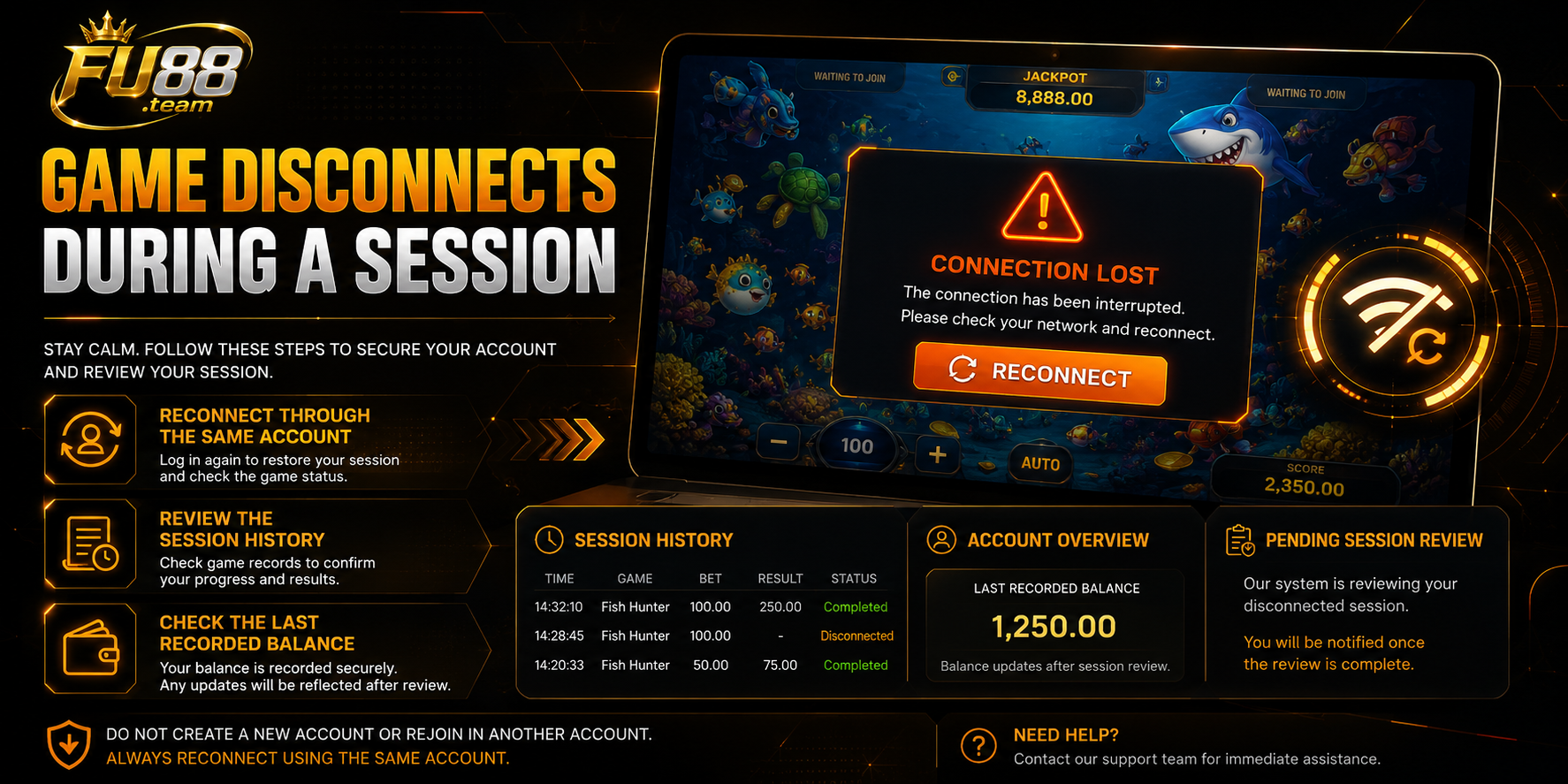
A disconnection can occur because of a connection drop, browser interruption, device sleep state or temporary provider issue.
Do Not Immediately Start A New Session
First check whether the interrupted session has been completed, cancelled or remains pending.
Reconnect Through The Same Account
Open the lobby and review the game or account history. Avoid creating another overlapping session in a separate tab.
Check The Last Recorded Balance
Compare the balance shown after reconnection with the amount recorded before the interruption.
Review The Session History
Look for the game name, time, ammunition used and final status. A completed history entry is more reliable than an interrupted animation.
Record A Missing Or Pending Entry
When the session does not appear or remains pending, preserve screenshots and identifying information before contacting support.
Balance Or Points Appear Incorrect
A balance difference may result from delayed display, ammunition used during automatic fire, an incomplete session or a genuine account-record issue.
Refresh The Account Display Once
After confirming that the game has ended, reload the account or lobby balance once. Do not repeatedly reopen the same session.
Compare The Starting And Ending Values
Use screenshots or recorded values rather than estimating the difference from memory.
Review Ammunition Use
Automatic fire, target lock and special weapons may consume more ammunition than a short manual sequence.
Check The Session Status
Look for labels such as completed, pending, interrupted or cancelled. The exact wording may vary.
Check For More Than One Active Tab
Another open session may display an older balance or continue using the same account state.
Do Not Deposit Again To Correct The Display
A new payment does not resolve an unclear game history. Verify the existing balance record first.
How To Check Fish-Shooting History
The history section is the main reference when an animation, target result or balance display is unclear.
Locate The Relevant Time Range
Use the approximate time recorded when the error occurred.
Match The Game Title
Confirm that the entry belongs to the same fish-shooting product and provider.
Review The Session Status
Check whether the entry is completed, pending or unavailable.
Compare The Amounts
Review the balance before the session, ammunition or amount used and the ending value when these fields are provided.
Save The Reference Information
Keep the session number, reference code or screenshot available for further review.
Information To Prepare For Support
A clear report is more useful than a general message saying that the game is broken.
| Information | What To Record |
|---|---|
| Game details | Title, provider and room name |
| Time | Approximate date and local time |
| Error | Loading, lag, controls, disconnection or balance display |
| Balance | Value before and after the issue |
| Control state | Manual fire, automatic fire or target lock |
| Device | Phone, tablet or computer |
| Browser | Browser name and version when available |
| Connection | Mobile data, Wi-Fi or wired connection |
| Evidence | Screenshot, screen recording or history reference |
Do not include passwords, one-time verification codes or complete payment credentials in screenshots or support messages.
Common Troubleshooting Mistakes
Refreshing Repeatedly During An Active Session
Repeated reloads can make it more difficult to determine the final recorded status.
Opening The Same Game In Several Tabs
Multiple sessions may show inconsistent displays or place additional load on the device.
Continuing To Fire Through Heavy Lag
Delayed animation can hide how many commands have already been sent.
Increasing Ammunition To Test The Controls
A higher value increases the amount consumed by every accepted shot and does not confirm whether the interface is operating correctly.
Assuming A Frozen Animation Means A Lost Result
The final record should be checked through the history rather than inferred from the interrupted screen.
Clearing Data Before Recording Evidence
Capture the current balance, time and error message before closing the browser or clearing site data.
Sending Sensitive Account Information
Passwords and verification codes should never be included in a troubleshooting report.
Frequently Asked Questions About Fish Shooting Errors
Why Does A Fish-Shooting Game Stop At The Loading Screen?
The cause may involve the connection, browser cache, available device memory or a temporary game-provider issue. Check each layer separately.
Should I Refresh When The Game Freezes?
First record the balance and session details. When an active sequence may still be processing, check the history before repeatedly refreshing.
Why Is The Firing Button Delayed?
Possible causes include network delay, low device performance or an incomplete interface response. Stop repeated inputs and wait for the screen to update.
What Should I Do When Automatic Fire Will Not Stop?
Press the control once, wait for the display to respond and leave the room when the function remains active. Review the session balance and history afterwards.
Does A Different Balance Prove That An Error Occurred?
Not by itself. Compare the starting balance, ammunition use, automatic functions and final session status.
Should I Open Another Tab To Test The Game?
No. Keep one active tab for the account and fish-shooting session.
What Evidence Is Most Useful?
A screenshot showing the game title, time, visible error, balance and history status is usually more useful than an unsupported estimate.
Fish Shooting Error Checklist
- Stop pressing controls repeatedly.
- Record the current balance and time.
- Confirm the game, provider and room name.
- Keep only one active game tab.
- Check the internet connection.
- Close unnecessary applications.
- Review automatic fire and target-lock status.
- Check the session history before reopening the game.
- Compare the starting and ending balance.
- Save screenshots and reference details.
- Do not share passwords or verification codes.
- Do not increase ammunition to test an error.
Conclusion
Fish shooting errors can affect loading, animation, weapon controls, session continuity or balance displays. Because these issues may originate from different parts of the system, repeatedly refreshing or firing is rarely the clearest first response.
Stop further inputs, record the visible information and check the session history. A structured review of the connection, browser, device, controls and account records makes it easier to separate a display delay from an unresolved game session.