

FU88 login allows an existing account holder to access the account area using the username and password created during registration. Before entering any details, users should confirm that they are on the intended website and that the browser address has not changed unexpectedly.
This guide explains the basic login process, common access problems and practical security checks for shared or unfamiliar devices. Users who have not yet created an account can review the FU88 registration guide first.
FU88 Login Process In Three Steps
The login process normally involves opening the intended website, entering the registered account details and submitting the form. The exact button position or interface may differ between desktop and mobile layouts.
Additional account instructions are available in the FU88 guides section.
| Step | Action | Important Check |
|---|---|---|
| Step 1 | Open the intended website using a trusted link | Check the domain shown in the browser address bar |
| Step 2 | Enter the registered username and password | Check capital letters, numbers and accidental spaces |
| Step 3 | Select the login or confirmation button | Do not save the password on a shared device |
Step 1: Check The Website Before Logging In
Open the login page through the website you intended to visit. Examine the domain carefully because an imitation page may copy the logo, colours and layout of another site.
Close the page when:
- The browser redirects repeatedly to unfamiliar domains.
- The page requests information unrelated to account access.
- The address contains unexpected words, numbers or spelling changes.
- The form asks for a password or verification code through a separate message.
A secure browser connection helps protect information in transit, but the padlock symbol alone does not prove that an unfamiliar website is genuine.
Step 2: Enter The Registered Account Details
Enter the username and password associated with the account. Avoid copying text that may contain an invisible space before or after the password.
Before submitting the form, check:
- Whether Caps Lock is active.
- Whether the correct keyboard language is selected.
- Whether the username contains a typing error.
- Whether the password has been changed recently.
Do not share login details with another person or send them through email, social media or an unofficial support account.
Step 3: Submit The Login Form
Select the login button once after checking the information. Repeated clicks may send the form several times or make it unclear whether the first request was accepted.
After access is granted, confirm that the account name and account area are correct. Sign out immediately when the displayed account is unfamiliar or when the website behaves differently from previous sessions.
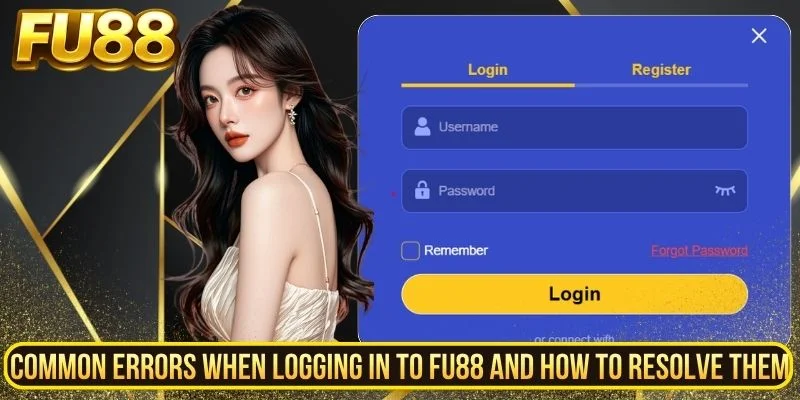
Common FU88 Login Errors And How To Check Them
Login problems may result from incorrect account details, temporary website availability, browser issues or an account restriction. Start with the message displayed on the page rather than repeatedly submitting the same information.
The Website Is Temporarily Unavailable
A login page may be unavailable during maintenance, a technical interruption or a temporary connection problem.
Check whether the rest of the website loads and whether an official notice appears. Avoid repeatedly entering the password when the page is not responding normally.
When the issue affects the entire website, wait and check again later rather than using an unfamiliar alternative link found in a comment, message or advertisement.
The Username Or Password Is Incorrect
An incorrect character, capital letter or accidental space can cause the login request to fail.
Type the username again carefully and use the password visibility option only when nobody else can see the screen. Avoid making many rapid attempts because repeated failed submissions may trigger a temporary security restriction.
The Account Is Temporarily Restricted
An account may be temporarily restricted after repeated failed attempts or activity that the system treats as unusual. The source article does not provide verified conditions for when this occurs, so users should follow the message displayed on the login page.
Use the account recovery function or the official support channel when identity confirmation is required. Do not send a password or one-time verification code to someone claiming that it is needed to unlock the account.
The Password Has Been Forgotten
Use the password recovery option shown on the login page. The recovery process may send a code or link to the mobile number or email address connected to the account.
Check that the destination information belongs to you before continuing. A recovery link should not ask for unrelated payment details.
The Verification Code Does Not Arrive
Confirm that the registered mobile number or email address remains accessible. Review the spam or junk folder and wait for the current code period to finish before requesting another one.
Requesting several codes in quick succession may invalidate an earlier code.
The Page Loads But The Login Button Does Not Work
The problem may involve an incomplete field, blocked browser script, outdated browser or unstable connection.
Try the following checks:
- Confirm that both account fields are complete.
- Reload the intended page once.
- Close unnecessary browser tabs.
- Update or restart the browser.
- Check the internet connection.
Do not install unknown browser extensions or applications that claim to repair the login page.
The Website Cannot Be Reached
A page may fail to load because of a connection problem, local network restriction, server interruption or incorrect address.
Check the domain spelling, try another trusted connection and review any official service notice. Avoid treating every inaccessible page as proof that the account has disappeared or that an unfamiliar replacement website is legitimate.
Security Notes For Login On Unfamiliar Devices
A personal device that is kept updated and protected is generally easier to control than a public or borrowed device. Whenever possible, avoid entering sensitive account details on computers in shared spaces.
Do Not Save The Password
Decline any browser prompt offering to remember the username or password on a shared, borrowed or public device.
A saved password may remain available to the next person who uses that browser profile.
Use Private Browsing Carefully
Private or incognito browsing can reduce the amount of local browsing history and cookie data retained after the window is closed.
It does not protect against malware, screen recording, keyboard monitoring or a compromised network. It should not be treated as a complete security solution.
Check The Surrounding Area
Make sure another person cannot see the password being typed. Be cautious of security cameras, screen reflections and people standing nearby.
Sign Out Completely
Use the account’s sign-out function before closing the browser. Closing only the tab may leave the session active.
After signing out, close every private window and confirm that reopening the website does not return directly to the account.
Do Not Download Unknown Files
A shared computer may display prompts to install software, browser add-ons or account tools. Do not download anything that is not required for the normal login process.
Change The Password After A Risky Session
When login details may have been exposed on an unfamiliar device, change the password from a trusted personal device.
Use a new password that is not shared with email, banking, social media or another online account.
Basic FU88 Login Safety Checklist
- Check the domain before entering the username or password.
- Use the credentials associated with the correct account.
- Review Caps Lock, keyboard settings and accidental spaces.
- Avoid repeated login attempts when the page displays an error.
- Use the official recovery process for a forgotten password.
- Never share a password or one-time verification code.
- Do not save credentials on a shared device.
- Sign out completely after the session.
- Change the password when account information may have been exposed.
Conclusion
FU88 login normally requires three actions: opening the intended website, entering the registered account details and submitting the form. Most access problems should first be checked against the message shown on the page, the accuracy of the credentials and the current website status.
Account holders should protect their password, avoid repeated failed attempts and use trusted personal devices whenever possible. On a shared or unfamiliar device, do not save the password and always sign out completely after the session.

pkudjeiuwhgrekzzximevthmiusvqt
otsoyhjmjgmerovzttfjueelidipyt
wtfmkyoitxtjjezenlpotfqpggfwtu
pmlavb
s1sxt2